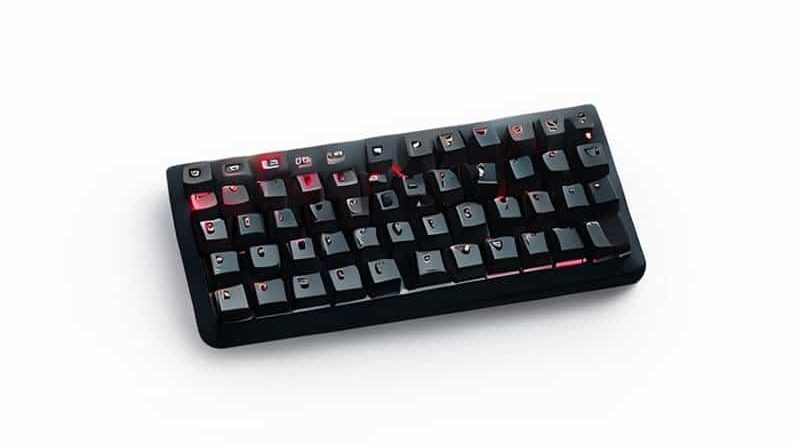
How To Change Color On Sades Keyboard
Changing the color on a Sades keyboard is a simple way to customize your gaming setup and enhance your overall experience. Sades keyboards are popular for their backlit keys, which often come with multiple colors and lighting modes. Understanding how to change colors and adjust lighting effects allows users to personalize their keyboards according to mood, game, or aesthetic preference. Whether you are a casual user or a dedicated gamer, learning the steps to modify the keyboard lighting will ensure you make the most of your device’s features and create an engaging visual environment while typing or gaming.
Understanding Your Sades Keyboard
Before changing the color on your Sades keyboard, it is important to familiarize yourself with its features. Most Sades keyboards come with multi-color LED backlighting, customizable through key combinations or software provided by the manufacturer. Knowing your keyboard model and its specific functions ensures you follow the correct method to adjust colors without causing any issues.
Key Features to Know
- LED backlight modes steady, breathing, wave, or reactive effects.
- Multi-color options some keyboards allow cycling through multiple preset colors.
- Function keys or dedicated software controls for adjusting brightness, speed, and color patterns.
Changing Color Using Key Combinations
Many Sades keyboards allow users to change the backlight color using built-in key combinations. This method is convenient because it does not require additional software and can be done quickly during use.
Step-by-Step Guide
- Locate the FN (Function) key on your keyboard.
- Find the key with a light bulb icon or labeled with LED or RGB.
- Press and hold the FN key while pressing the LED key to cycle through colors.
- Continue pressing the combination until you reach your desired color.
- Some models allow changing modes such as breathing, wave, or static colors using the same key combination.
Using Sades Keyboard Software
Some Sades keyboards come with companion software that allows more advanced customization of colors and lighting effects. This software is often available on the manufacturer’s website or included on a driver CD.
Software Customization Steps
- Download and install the official Sades keyboard software for your specific model.
- Open the software and navigate to the lighting or RGB settings tab.
- Select your preferred color from the color wheel or predefined options.
- Adjust brightness, speed, and lighting mode if available.
- Apply the settings to save the changes and update your keyboard lighting.
Tips for Optimal Lighting Effects
Changing the color on your Sades keyboard can enhance your gaming or typing experience, but understanding how to optimize the lighting can make it even better.
Lighting Tips
- Use colors that are comfortable for your eyes, especially during long gaming sessions.
- Consider matching keyboard colors with your gaming setup for a cohesive look.
- Experiment with different modes such as breathing or wave to find the effect you enjoy the most.
- Adjust brightness based on room lighting to prevent eye strain.
Common Issues and Troubleshooting
Sometimes users may encounter issues when trying to change the color on a Sades keyboard. Understanding common problems and how to fix them ensures a smooth experience.
Possible Issues
- Keyboard not responding to key combinations ensure the FN key is held properly and check if the keyboard drivers are installed.
- Software not detecting keyboard verify the software version matches your keyboard model and reinstall if necessary.
- Limited color options some models only support preset colors, so check the specifications before attempting custom colors.
Maintaining Your Sades Keyboard
Proper care of your keyboard ensures that the backlighting continues to function correctly. Regular maintenance prevents issues with keys, LEDs, or software performance.
Maintenance Tips
- Clean your keyboard regularly to prevent dust from interfering with LED lights.
- Avoid spilling liquids on the keyboard to protect electronic components.
- Keep software updated to ensure compatibility with your operating system.
- Handle keycaps and function keys carefully to prevent damage to LED controls.
Changing the color on a Sades keyboard is a simple yet effective way to personalize your gaming or typing environment. By using either key combinations or companion software, you can select your preferred colors, adjust lighting effects, and create a visually appealing setup. Understanding the keyboard features, following the correct steps, and maintaining the device ensures long-lasting performance and a satisfying user experience. With proper care and customization, your Sades keyboard can provide both functional and aesthetic value, making your workspace or gaming setup more engaging and enjoyable.